
DotCraft Satellite
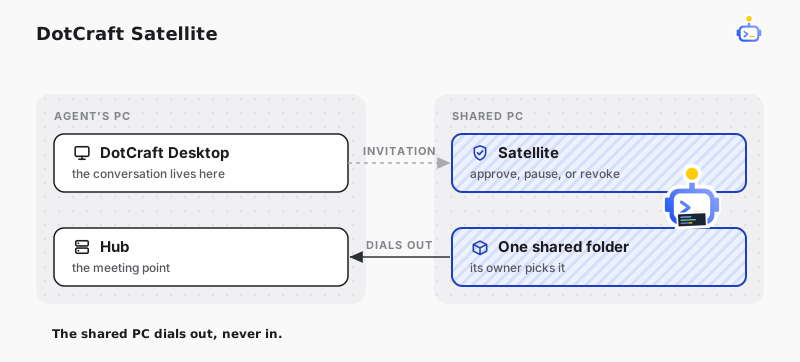
Satellite lets your agent work in one folder on another PC — a colleague's workstation that already has the repository, the build tools, and the language servers — while the conversation, the approvals, and the history stay with you. You invite that PC from Desktop; your colleague installs Satellite from the link, approves the one folder they are willing to share, and can see who is connected and stop it at any moment.
Invite a PC
Open Settings → Connections → Satellites and choose Invite. The dialog asks what you need the PC for — that is optional, and the person you invite sees it. Create the link, copy it from the same dialog, and send it to them. To invite a second PC, choose Create another without leaving the dialog. The link works once and expires after 24 hours.
The first invitation makes Windows ask once whether to allow DotCraft through the firewall. Allow it on your private network. The other PC only dials out to reach you — nobody opens a port or edits a configuration file there.
If the owner of that PC would rather set it up from a terminal, the Remote Tool Host architecture page covers the command-line path.
Install from the invitation link
Your colleague opens the link in a browser on the PC they are sharing. The page names you and what you want to do, and offers Download DotCraft Satellite. The installer installs for their user only and asks for no administrator password. Once it finishes, the approval window opens on its own.
NOTE
Until DotCraft signs its installers, Windows SmartScreen shows a blue "Windows protected your PC" screen. Choose More info, then Run anyway.
Approve the folder
The Share this PC window is the only place a connection is created. It shows your colleague who is asking and why.
They choose the folder, and nothing is filled in for them: Choose… picks the project folder itself — not a whole drive, and not their user folder. Allow becomes available once a folder is picked.
Allowing access lets your agent read and change files inside that folder, and run commands on that PC. It lasts only while your colleague stays signed in. Decline leaves nothing behind — nothing is stored until they choose Allow.
Read the tray icon
Satellite lives in the notification area of the shared PC, and the colour of its icon tells its owner where things stand:
| Icon | Meaning |
|---|---|
| Grey | Not connected. Nobody can reach this PC right now. |
| Blue | Ready. Connected and waiting. |
| Green | In use. Someone is running something in the folder. |
| Amber | Sharing paused. New work is refused, and the connection stays open. |
Right-clicking the icon shows who is connected and since when, what is running right now, and the controls described below.
Satellite starts with Windows and sits in the tray with no window, so the PC stays available without anyone doing anything. To start it by hand instead, remove DotCraft Satellite from Settings → Apps → Startup on that PC.
Choose where a conversation runs
Settings → Connections → Satellites lists every PC that has joined, each marked Ready, In use, or Offline. Open one to see the folders it shares and what has happened on it recently.
The Run on chip sits in the context row under the composer, next to the workspace chip. It offers This PC plus one entry per paired PC and shared folder, and greys out folders someone else is using and PCs that are offline. Pick one, and this conversation's file, Shell, and language tools run there instead of on your machine.
Desktop remembers the choice for that conversation and puts it back the next time you open it, as long as the PC is online and the folder is free. A folder serves one conversation at a time — if it is taken, wait until it is free. To come back to your own machine, choose This PC.
Stop or remove access
Either side can stop. From the tray menu your colleague can pause sharing when they need the machine to themselves and resume it later, disconnect the current session (you can reconnect), or revoke your access for good. Quitting Satellite stops sharing until they next sign in.
On your side, open the PC under Settings → Connections → Satellites and choose Remove from its status menu. That ends the pairing on both sides, and a new invitation is needed to join again.
Uninstalling Satellite from Settings → Apps → Installed apps on that PC offers to revoke everyone who still has access. Uninstalling stops the sharing either way.
Related docs
- Security & Sandbox — what an agent may and may not do inside a folder