
IDE / Editors (ACP)
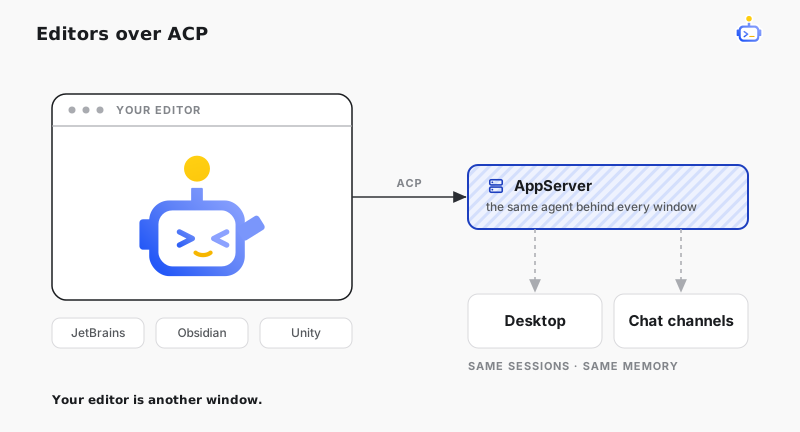
DotCraft runs as a coding assistant right inside your editor — JetBrains, Obsidian, Unity — with no cloud subscription and no proprietary plugin. It speaks Agent Client Protocol (ACP), an open standard for connecting coding agents to editors, much like LSP for language servers. Any ACP-capable editor can talk to DotCraft.
The editor launches DotCraft, and DotCraft bridges that conversation to its AppServer, which runs the agent. So a session in your editor uses the same workspace, the same session history, and the same memory as Desktop and channels. The editor is just another window onto the same agent.
Supported editors
| Editor | Plugin / integration |
|---|---|
| JetBrains IDEs | Built-in AI Assistant agent support |
| Obsidian | obsidian-agent-client |
| Unity Editor | dotcraft-unity |
ACP is an open standard with a growing ecosystem. Any other ACP-capable editor connects with the same configuration shape.
Connect your editor
1. Initialize a DotCraft workspace
Run a one-time setup in your project directory:
cd <your project directory>
dotcraft setup
Follow the prompts for provider, model, and api-key. Run dotcraft setup --help for the supported options, or see the Configuration Reference for the full field list. Once setup finishes, the workspace is ready for ACP, Desktop, and automation entry points alike.
2. Configure ACP in the editor
Fill in three fields in the editor's agent configuration:
- Command:
dotcraft - Arguments:
acp - Working directory: the project root from step 1
Launched with acp, DotCraft enters ACP mode automatically — no config-file changes required.
3. Connect to a remote AppServer (optional)
If an AppServer is already running (started by dotcraft app-server or the desktop app), point the editor at it instead of starting a second one:
dotcraft acp --remote ws://<host>:<port>/wsThe AppServer listens on a bare ws://host:port address, and clients always append the /ws path. Add --token <token> if the AppServer requires authentication. Once connected, sessions you create in the editor are visible in real time to every connected client.
JetBrains IDEs
A JetBrains IDE with the AI Assistant plugin can register an ACP agent directly. Open AI Chat → Add Custom Agents and enter:
{
    "agent_servers": {
        "DotCraft": {
            "command": "dotcraft",
            "args": ["acp"]
        }
    }
}
Save, then pick DotCraft in the AI chat panel's agent selector. The IDE owns the process: DotCraft starts when you open a session and exits when you close it.
Obsidian
Install obsidian-agent-client (via BRAT or manually), then add a Custom agent in the plugin settings:
| Field | Value |
|---|---|
| AgentID | DotCraft |
| Display name | DotCraft |
| Path | dotcraft.exe |
| Arguments | acp |
DotCraft then appears in the plugin's chat UI. It answers questions and reads and writes notes directly — one agent, both coding assistant and knowledge-base assistant.
Unity Editor
The Unity client lives in a separate repository: DotHarness/dotcraft-unity. Unity launches DotCraft itself over ACP, so install and initialize DotCraft with the steps above first, then add dotcraft-unity to your Unity project:
https://github.com/DotHarness/dotcraft-unity.gitOnce connected, the agent can query the scene, the current selection, the Console, and project info. Those tools are provided and maintained by the dotcraft-unity plugin.
What the editor adds
- Unsaved buffers — the agent sees what you're editing, not just what's on disk.
- Diffs before applying — review and approve each change in the editor's own diff view.
- Editor-managed terminal — commands run in the editor's terminal, with its working directory and environment.
- Native approvals — before a file write or a shell command, the editor shows an approve/deny prompt.
- Slash commands and model switching — your
.craft/commands/show up in the editor's command picker, and you can switch model in place.
The agent runs in AppServer, so your work outlives the editor. For the full list of ACP methods DotCraft implements and how the bridge maps them to AppServer, see the AppServer Protocol.
Sessions shared across clients
An ACP session is a full workspace session. It lives in the same store as your Desktop and bot sessions and shares the same long-term memory. What you work out in the editor is available in a Desktop or QQ bot session in the same workspace, and the other way around.
With --remote, several clients stay connected to one AppServer at once. A session you open in Obsidian is visible and continuable in the desktop app in real time. For the model behind this, see Unified Session Core.
Related docs
- Desktop — the graphical entry point to the same agent, best for diffs, approvals, and history
- Channels & Bots — reach the same workspace from QQ, Feishu, and other chat tools