
Plugins and tools
Tools decide what the agent can do: edit files, run commands, reach the web, connect to outside services, and follow reusable workflows. Plugins and MCP servers are how you add those capabilities.
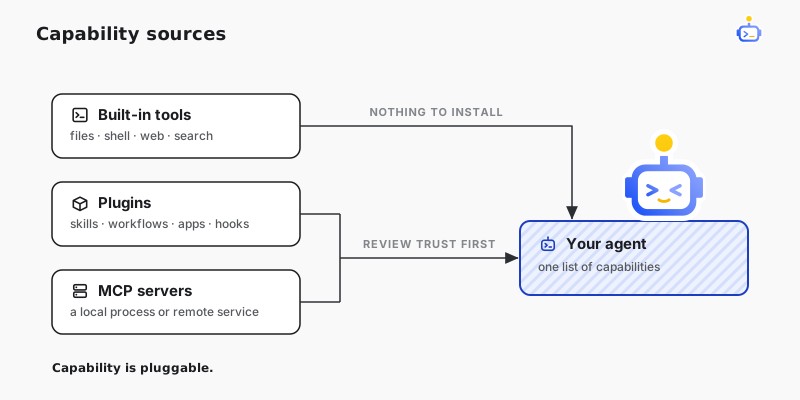
Where capabilities come from
| Source | What it adds |
|---|---|
| Built-in tools | File editing, shell, web, search, planning, and other core actions |
| Plugins | Packaged skills, tools, workflows, apps, panels, and lifecycle hooks |
| MCP servers | Tools provided by a local process or a remote service |
Wherever a capability comes from, the agent's tool calls still pass through workspace boundaries, approvals, and security settings. Executable Desktop and .NET plugins are the exception. They have their own trust boundary, described below.
Install a plugin

- Open Plugins in DotCraft Desktop.
- Search or browse the catalog.
- Open a plugin and check its publisher, the capabilities it lists, and its links.
- Select Install.
- Review the confirmation, then select Add to DotCraft.
- Complete any app setup shown in the installation dialog.
- Select Try in chat, or start a conversation and describe what you want done.
To install plugins from another catalog, see Plugin marketplaces.
Manage installed plugins
Open Plugins, then select Manage. Turning a plugin off keeps its files but takes its capabilities away from the agent, and you can turn it back on whenever you need it. To remove it for good, open the plugin and select Uninstall.
If a plugin includes an app, App Settings manages its account connection, and the app picker in a conversation decides whether that conversation can use it. See Connected Apps.
Install from disk
Install straight from a folder when you're developing a plugin or someone sent you one. This entry point is available only for local workspaces.
- Open Plugins.
- Open the menu beside Create, then select Install from disk.
- Choose the plugin folder.
- Review the plugin, then verify it with Try in chat.
DotCraft copies the plugin into the current workspace, and uninstalling removes that copy.
Create a plugin
Start with the built-in $plugin-creator skill:
$plugin-creator Create a plugin that packages my project review workflow.The skill sets up the plugin structure and walks you through testing it locally. Use a plugin when you want to hand a capability to other people. A workflow that only serves one project is fine as a plain skill.
For executable modules, start with Build a Desktop Plugin or Build a .NET plugin. For packaging and distribution, see the Plugin Market guide.
Connect an MCP server
Open Settings → MCP Servers, then add one of these connections:
- STDIO for a server started by a local command.
- Streamable HTTP for a remote MCP endpoint.
Pass tokens and other secrets through environment variables. Select Test connection before relying on the server in a conversation. The complete field list is in the Configuration Reference.
Review trust before installing
Install only plugins you trust, and connect only servers you trust. Check the publisher, the capabilities it declares, the source links, and the account permissions it asks for. Manifest capability labels describe a plugin; they neither grant nor restrict executable permissions.
Agent tool calls keep going through tool policy and approvals. Executable plugins are different. Desktop Plugin code runs as trusted code in Desktop's renderer once the plugin is enabled. .NET Plugin code runs inside the DotCraft host with that process's filesystem, network, credential, native interop, and OS authority, requires an explicit grant for the accepted plugin id and fingerprint, and is not contained by the ordinary tool sandbox. Use MCP when executable code needs a process boundary.
Hooks that arrive with a plugin stay inactive until you review and trust them in Settings → Hooks.
Related docs
- Plugin marketplaces — add catalogs you trust and install plugins from them
- Connected Apps — connect a plugin's app to your account
- Security & Sandbox — bound tool calls with workspace boundaries and a sandbox