
Connected Apps
Connected apps let a conversation work directly with products and services you already use. When the agent needs to read or change something outside the repository, connect the app it needs.
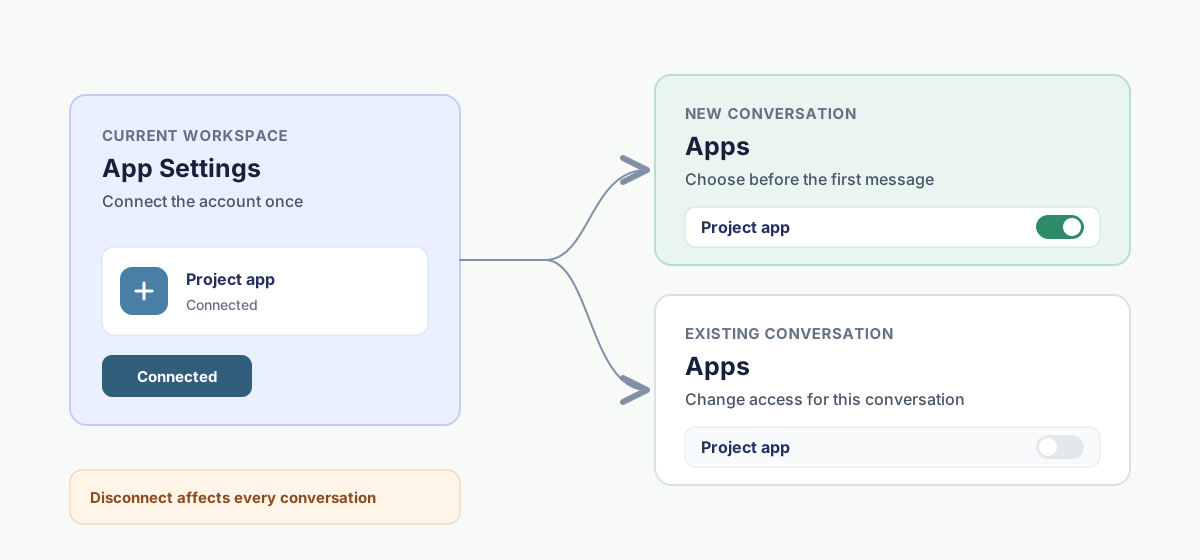
An app is connected to the workspace once. Each conversation then decides whether to use it.
Connect an app
- Open Plugins, then open the plugin that provides the app.
- Select Install.
- Review the confirmation, then select Add to DotCraft.
- If setup asks for a companion application, select Install app, finish the installation, then select Refresh.
- Select Connect.
- Complete the confirmation in the app, then return to DotCraft.
Once connected, the app appears under the plugin's App Settings. Go there whenever you need to reconnect or disconnect it.
Use apps in a conversation
- Start a new conversation.
- Select Apps.
- Turn on the apps this conversation needs.
- Send your first message.
DotCraft prepares the selected apps before it sends the first message. To change the selection later, open Apps in the conversation header. That affects only the current conversation and never disconnects the app from the workspace.
NOTE
A new conversation may already have connected apps selected. Check the list and turn off whatever you don't need before sending your first message.
Review new capabilities
When an app asks for expanded capabilities, Review appears beside it.
- Keep previous capabilities declines the new access and stays on the approved baseline. The app may be unavailable until it reconnects with that access.
- Accept capabilities lets the conversation use the expanded set.
If the change adds write actions or access to more data, read it closely before accepting.
Reconnect or disconnect
Open the plugin, then open App Settings. Select Reconnect when the connection has expired or the app asks you to sign in again. To remove the workspace connection, open Connected, then select Disconnect.
CAUTION
Turning an app off in a conversation affects only that conversation. Disconnecting it in App Settings affects every conversation in the current workspace.
For apps used through social channels, follow the channel's binding flow. See Channels & Bots.
Related docs
- Plugins and tools — apps come from plugins, so start here for installing and managing them
- Security & Sandbox — the trust boundaries to weigh before accepting an app's capabilities