
Lifecycle Hooks
Lifecycle Hooks let DotCraft run your scripts at important moments in a session, a prompt, or a tool call. Use them when you want the agent to follow project routines automatically, such as checking a command before it runs, adding context when a session starts, or reviewing work after a tool finishes.
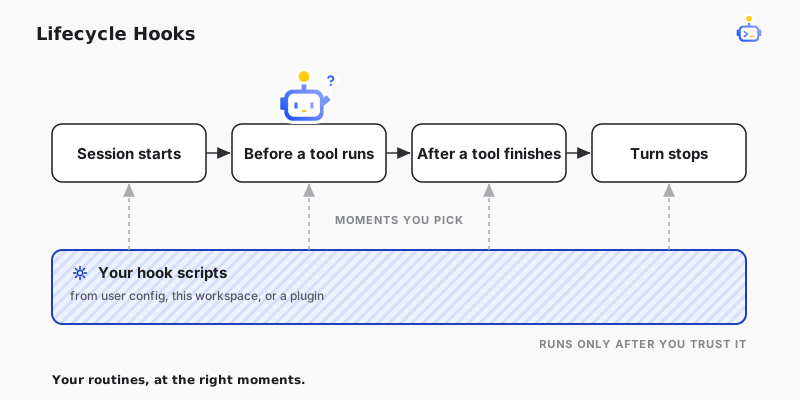
When to use hooks
Hooks are best for small guardrails and repeatable checks that belong near the agent's normal workflow.
| Use case | Good hook moment |
|---|---|
| Warn before risky shell commands | Before a tool runs |
| Add project reminders to a new thread | When a session starts |
| Format or lint after file edits | After a tool finishes |
| Review a final diff or command output | When a turn stops |
| Notify another system | After a tool or turn finishes |
Keep the script focused. If the logic grows, call a project script from the hook instead of putting everything inline.
Where hooks come from
DotCraft can discover hooks from your personal config, the current workspace, and enabled plugins. That lets you keep private preferences for yourself, share team policy through the workspace, and install reusable hook bundles from plugins.
Hooks that run local commands need trust. A newly discovered hook starts untrusted, and a changed hook becomes modified until you trust it again. Plugin hooks are trusted as one plugin bundle, so you can review the plugin's hooks and allow the current set together.
Manage hooks in Desktop
Open Settings -> Hooks to see every discovered hook grouped by source.
From this page you can:
- See whether a hook came from user config, workspace config, or a plugin.
- Expand a hook to inspect its command, matcher, source file, and trust state.
- Enable or disable user and workspace hooks without editing the source file.
- Trust a user or workspace hook after you add or change it.
- Trust all current hooks from a plugin with one Trust hooks action.
- Expand plugin hooks to inspect what the plugin declares before you trust it.
Configuration files remain the source of truth for hook commands. Desktop manages only your personal enable and trust state.
Hook safety
Hooks are powerful because they run local commands. Start with hooks that only observe and print context, then add blocking behavior once the output is clear. Keep secrets out of workspace files, use environment variables for credentials, and install plugin hooks only from sources you trust.
Related docs
- Configuration Reference — hook file shape, events, state, and examples
- Plugins & Tools — plugins that can ship reusable hooks
- Security & Sandbox — guardrails for file, shell, and sandbox behavior
- Lifecycle Hooks Specification — engineering contract for hook implementers