
Subagents
A subagent is how the main agent delegates. Hand it a self-contained task, it works in its own context, and only the result comes back to the main conversation. Give exploration and research — the work that produces a lot of intermediate output — to a subagent, and the main conversation stays readable.
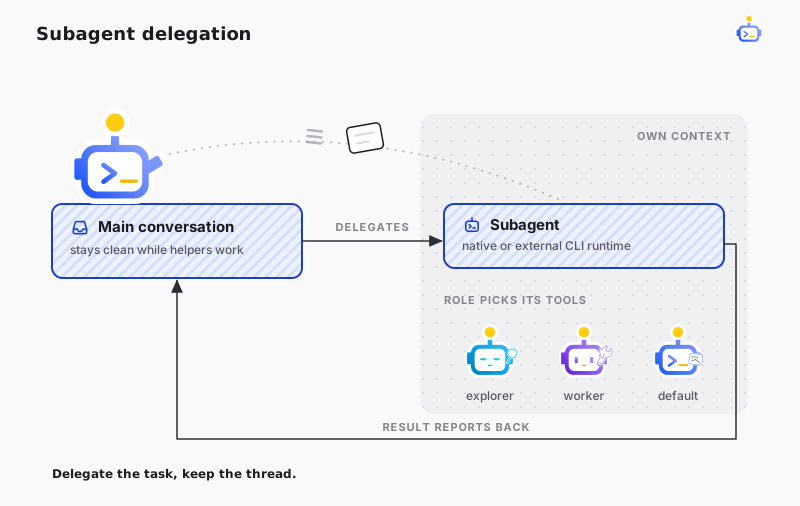
Two things define a subagent: the role decides what it can do, and the runtime decides where it runs. The defaults are safe to use as they are — the main agent can create one level of subagents, and a subagent does not spawn further ones. Full configuration fields are in the Configuration Reference.
The role decides what it can do
| Role | Best for | Permissions |
|---|---|---|
explorer | Read-only code exploration and research | Reads and searches files, runs observation commands such as git diff, cannot write |
worker | Implementation, verification, file changes | Reads and writes files, runs commands, accesses the network |
default | Summaries, analysis, general collaboration | A conservative tool set with no high-privilege tools |
Role limits are enforced at the moment a tool is called. A subagent that calls a tool it is not allowed gets a clear reason and can take another route. You can also define your own roles in workspace configuration to fix the delegation patterns your team uses most.
The runtime decides where it runs
The native runtime runs subagents inside DotCraft itself. Role tool limits apply in full, the subagent shares the same prompt prefix as the main conversation, and startup costs little.
You can also use an external coding CLI as the runtime, with built-in support for Codex CLI and Cursor CLI. An external CLI runs a one-shot task in its own process and usually reports stage-level progress only. DotCraft passes the role instructions to it, but cannot constrain the tool calls it makes internally. When you need strong isolation, prefer the native runtime and pair it with Security & Sandbox.
Follow subagent progress in Desktop

Desktop keeps the main conversation available while subagents work. Open the background-agent summary to see which tasks are running or complete. The finished result still returns to the main conversation.
Approvals still apply
File and command operations from a native subagent go through the same approval flow as the current session, and every request is labeled with the subagent it came from. DotCraft cannot intercept an external CLI's internal operations one by one, but it passes the current approval mode along as far as the CLI allows.
How to choose
| Situation | Recommendation |
|---|---|
| Bounded read-only exploration | Native runtime with explorer |
| Implementation inside the current workspace | Native runtime with worker |
| Reusing a specific external coding CLI workflow | External CLI runtime |
| The strongest tool isolation | Native runtime, a tightened tool list, and the sandbox |
A subagent's conversation is saved as a child of the main conversation. Archiving, restoring, or deleting the main conversation handles the child conversations with it, and role and tool limits survive a restart.
Related docs
- Security & Sandbox — tighten what a subagent can reach with workspace boundaries and the sandbox
- Observability — view subagent calls and approvals in Dashboard