
Automations & Goals
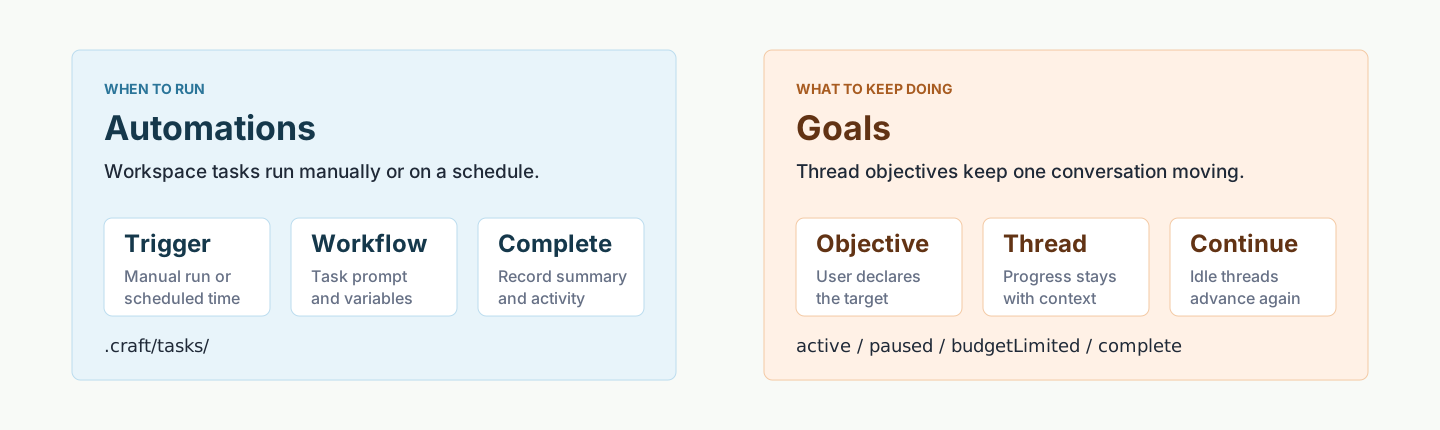
DotCraft has two ways to keep the agent working when you are not driving every turn. Automations run a task on a schedule or on demand, so routine work like reports, checks, and cleanups happens on its own. A Goal gives one conversation a long-running direction, and DotCraft keeps advancing it whenever that conversation goes idle.

Automations
Automations run local work in your workspace, on a schedule or whenever you trigger them. Use them for the routine jobs you would otherwise remember to do yourself: a weekly report, a nightly check, a cleanup pass.
Ask DotCraft what to do and when, for example: “Every Friday at 9, summarize this week's changes.” The agent creates the automation and shows its schedule. Open Automations to edit it directly, pause it, or run it now. Manual setup is available from the same page.
Follow-up requests continue an existing conversation. Independent scheduled work starts a new conversation for each run and shares memory across runs. Advanced settings let you select an Agent Profile and execution directory. The host running the automation must be online.
Review task output
Select an automation to see its previous runs, then open the result you want. Each run points to its own conversation or the specific turn in the followed conversation. Independent runs in Git projects use separate managed worktrees by default, and their changes can be reviewed from the run's conversation.
Follow-ups notify you about important changes; independent jobs notify you after each run. You can change this in the automation details. Pausing prevents future runs while allowing current work to finish.
Goals
A Goal gives one conversation a long-running direction. Once you set it, the goal stays with that conversation, and every time the conversation goes idle (with auto-continue on) DotCraft keeps advancing it — until it is complete, until you pause or clear it, or until the token budget runs out and it waits on you.
Goals suit the work that takes many turns to move: refactors, documentation passes, migrations, investigations. Progress, time spent, and completion state stay with the conversation, and you can pause, resume, replace, or clear the goal at any time.
Set, pause, and clear a goal from the Desktop goal control. The conversation list and detail view show its current state: active, paused, budget limited, or complete.
Common scenarios
Automations decide when something runs once. Goals decide which direction the work keeps moving. The two combine: a scheduled task can run inside the same conversation and keep pushing the same goal forward.
| Scenario | Recommendation |
|---|---|
| Weekly or daily reports, scheduled checks | Automations on a schedule |
| Run a test suite and write the summary to a conversation | Automations with a completion summary |
| Keep advancing a refactor or documentation pass | Goals |
| Make scheduled work follow the same long-running objective | Automations + Goals |
| Format or lint after file writes | Lifecycle Hooks, after a tool finishes |
| Block dangerous shell commands | Lifecycle Hooks, before a tool runs |
Related docs
- Lifecycle Hooks — for work that triggers at a moment in a tool call or session, rather than on a schedule
- Observability — review task runs and approvals in Dashboard