
Plugin marketplaces
A plugin marketplace is a catalog you add yourself. Once it's added, its plugins show up on the Plugins page and you browse and install them like any other.
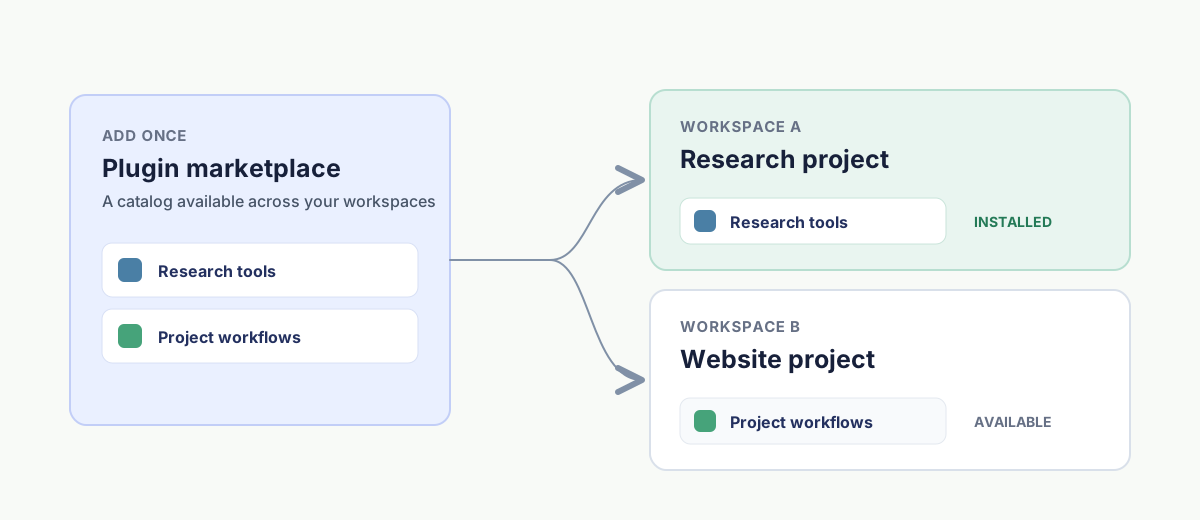
A marketplace is added to DotCraft once, and its plugins are installed per workspace. Every project keeps only the capabilities it needs.
Add a marketplace
- Open Plugins in DotCraft Desktop.
- Open the menu beside Create, then select Add marketplace.
- Enter the marketplace source.
- Select Add marketplace.
DotCraft loads the catalog and shows its plugins on the Plugins page.
Choose a source
| Source | Example | When to use it |
|---|---|---|
| GitHub repository | owner/repo | The shortest way to add a repository hosted on GitHub |
| Git URL | https://host/team/plugins.git | Public, private, or self-hosted Git repositories |
| Local folder | Select Browse | A marketplace you're developing or maintaining on this computer |
Browse appears only when Desktop is using a local workspace. A Git source follows the repository's default branch unless you set a branch, tag, or commit in Git ref. Use Sparse paths only when the repository owner tells you to download specific folders, one repository path per line. Most marketplaces don't need it.
To build and distribute a marketplace of your own, see the Plugin Market guide.
Install a plugin from a marketplace
Installing works the same as any other plugin: choose Marketplaces in the publisher filter on the Plugins page, open the plugin you want, select Install, and confirm with Add to DotCraft. The full walkthrough is in Plugins and tools.
A plugin installs into the current workspace only. Use Manage to enable or disable installed plugins without uninstalling them.
Refresh and remove
When a publisher adds or updates plugins, choose Marketplaces in the publisher filter, find the marketplace heading, open Marketplace actions, and select Refresh. The catalog updates in place.
Remove, in the same Marketplace actions menu, drops the marketplace. Its catalog disappears from DotCraft, and plugins already installed in your workspaces stay until you uninstall them.
CAUTION
Add marketplaces only from sources you trust. Check a plugin's publisher, the permissions it asks for, and its links before installing it.
Related docs
- Plugins and tools — the full path for installing, managing, and creating plugins
- Security & Sandbox — bound what a plugin's tools can do with workspace boundaries and a sandbox