
Channels & Bots
Put DotCraft in the chat tools your team already uses, so a colleague can ask in the group chat instead of opening Desktop. QQ, WeCom, Feishu / Lark, Telegram, and WeChat all connect, and the resulting sessions and memory are shared with every other entry point in the workspace.

Connect a channel
- Open a workspace in DotCraft Desktop and go to Channels.
- Pick the platform you want, and fill in its credentials on the form.
- Finish the matching setup in the platform console or bot tool.
- Turn the channel on, and send the bot a test message.
Desktop hosts the channel process for you — nothing else to deploy. Which credentials each platform needs is on its setup page in the table below. Settings shared by every channel are in the Channel configuration reference.
Built-in channels
| Platform | Connection | Main capabilities | Setup |
|---|---|---|---|
| NapCat or OneBot v11 reverse WebSocket | Private chats, groups, approval keywords, media delivery | QQ setup | |
| WeCom | Group bot callback URL, Token, EncodingAESKey | Enterprise group chats, approvals, file and image delivery | WeCom setup |
| Feishu / Lark | Self-built app with Bot and WebSocket event subscription | Card replies, approvals, reactions, optional official CLI | Feishu setup |
| Telegram | BotFather token | Direct chats, groups, /new, /help, inline approvals | Telegram setup |
| WeChat / Weixin | Tencent iLink QR login | Weixin chats, saved login session, plain-text replies, file and image delivery | Weixin setup |
How channel conversations work
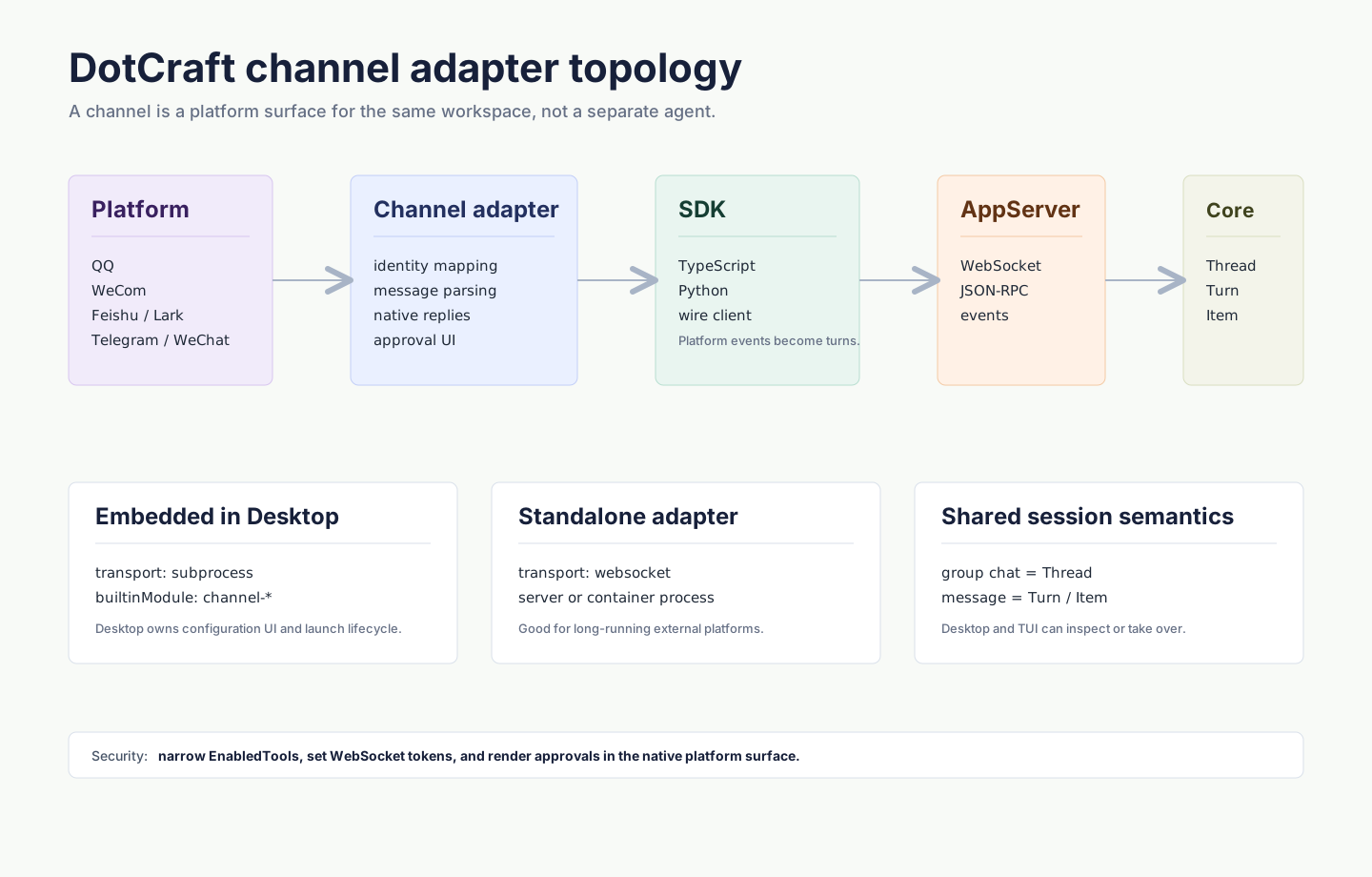
- Messages you send to the bot continue one conversation, and replies go back to the same chat.
- Approvals and follow-up questions appear in the chat where the platform supports them.
/newstarts a fresh conversation in channels that support slash commands.- Open the same workspace in Desktop to read the history or keep the conversation going there.
For the model underneath, see Unified Session Core.
Continue a Desktop conversation in chat

From a Desktop conversation's Apps menu, bind that conversation to a connected channel. DotCraft shows a /bind 123456 command. Send it in the target chat to continue the same conversation there.
The binding applies only to that chat. Other chats keep their own channel conversations.
Before you open a bot to a group
Before putting a bot in a group or public chat:
- Keep file and shell actions behind approval.
- Limit the channel to trusted users, groups, or chats where the platform supports it.
- Set a strong random AppServer WebSocket token when you run an adapter yourself.
- Serve production deployments over HTTPS when the platform calls back into DotCraft.
- Turn on OpenSandbox when you need stronger tool isolation.
The exact field names are in the Configuration Reference.
Connect your own platform
When the built-in channels don't cover the platform you need, write an adapter. Channel adapters covers the base class and message flow, and Channel Module integration covers wiring the finished module into DotCraft. The underlying message format is in the AppServer Protocol.
Related docs
- Security & Sandbox — tighten tool permissions and sandboxing before a bot faces a group chat
- Server Deployment — keep channels running on a server instead of your own machine