
Project Workspace
In DotCraft, a workspace is the project folder you open. Its .craft/ directory keeps project-specific instructions, settings, memory, capabilities, and conversation history beside the code they belong to.
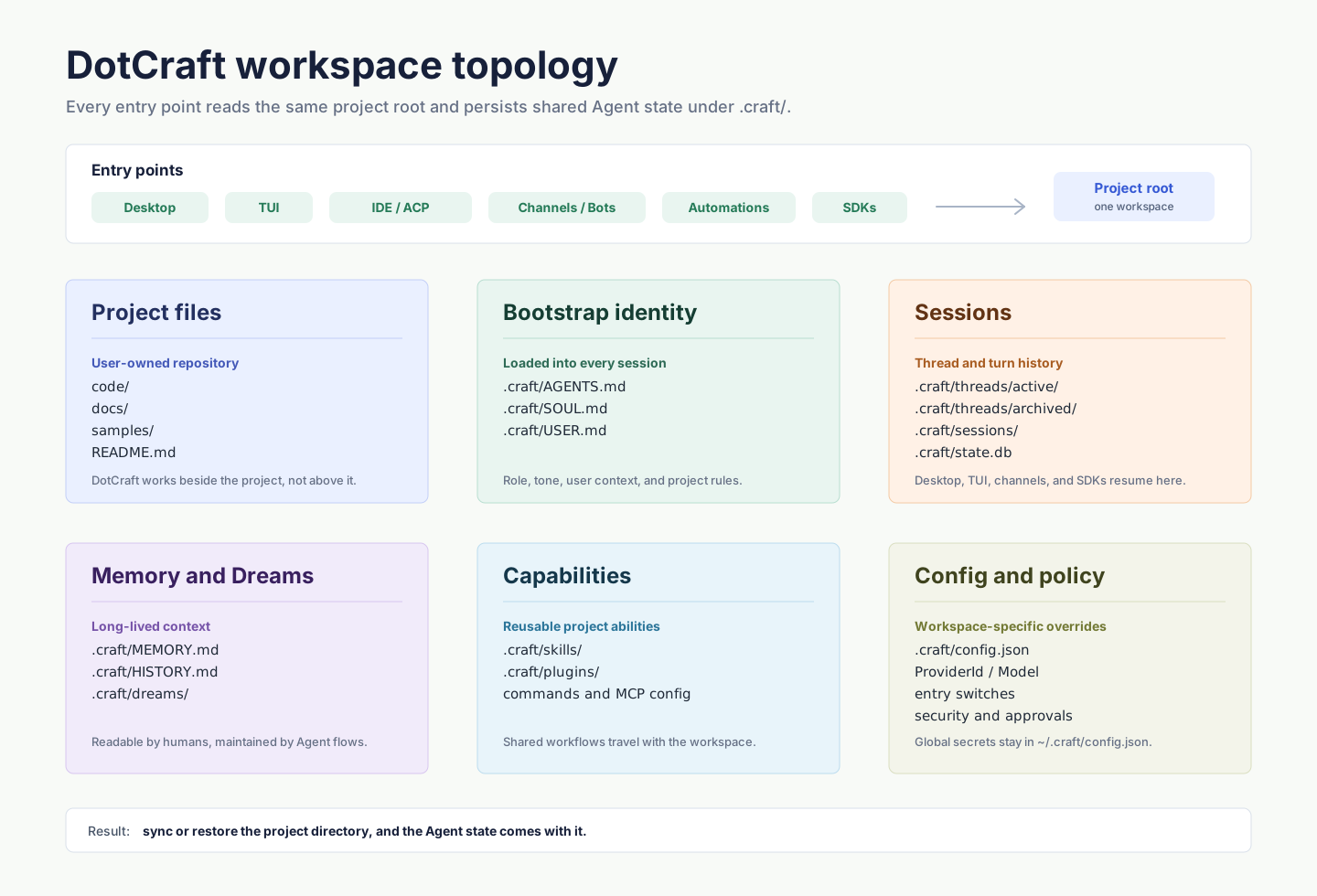
What the workspace keeps
| Content | What it is for |
|---|---|
| Instructions | Project rules and preferences the Agent should follow |
| Memory | Long-lived context that remains useful across conversations |
| Skills and plugins | Reusable capabilities installed for this project |
| Workspace settings | Project-specific model, automation, and security choices |
| Conversations | History and supporting files used to continue previous work |
Desktop, CLI, editors, channels, and automations can use the same workspace. A conversation started from one entry point can be continued from another while they connect to the same workspace.
Share a baseline with Git
Use Git when teammates need the same instructions, memory, skills, plugins, and workspace settings:
- Review the files under
.craft/and decide what is safe to share. - Commit only the project context your team should receive.
- Ask teammates to open the cloned project as their DotCraft workspace.
The generated .craft/.gitignore excludes local runtime data such as databases, terminal captures, large tool results, and attachment files. A Git clone therefore contains only tracked files; it is not a complete backup of the workspace.
CAUTION
.gitignore is not a privacy boundary. Conversation history and project memory can contain sensitive information. Review changes before you commit them, or ignore the entire .craft/ directory from the repository root when the workspace should remain private.
Back up and restore the complete workspace
To preserve local conversation data and supporting files for a backup or same-path restore:
- Close DotCraft and stop any DotCraft server that has the workspace open. Wait for them to exit so all pending writes finish.
- Copy the entire project folder, including hidden and Git-ignored files under
.craft/. - Restore the copied folder to the same absolute path before opening it as a workspace.
Saved conversations retain the workspace's absolute path. Opening the copy at a different path is not currently a supported session migration workflow.
Provider credentials and personal preferences normally live in the global ~/.craft/config.json. They are not included when you copy only the project, so you may need to configure or reconnect them on the destination machine.
Start a workspace
- Open a project folder in Desktop, or run
dotcraft setupfrom that folder. - Complete the setup prompts.
- Start a conversation and describe the project task.
For the full setup walkthrough, see Getting started.