
Connected Apps
Connected apps let a conversation work directly with products and services you already use. When the agent needs to read or change something outside the repository, connect the app it needs.
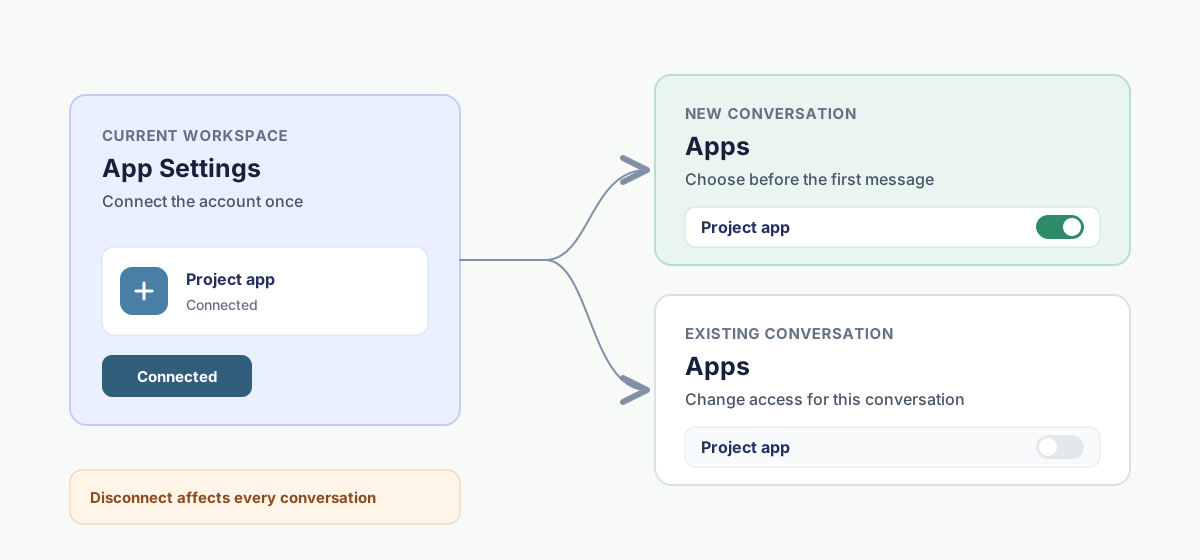
An app is connected to the workspace once. Every new conversation in that workspace can then use it.
Connect an app
- Open Plugins, then open the plugin that provides the app.
- Select Install.
- Review the confirmation, then select Add to DotCraft.
- If setup asks for a companion application, select Install app, finish the installation, then select Refresh.
- Select Connect.
- Complete the confirmation in the app, then return to DotCraft.
Once connected, the app appears under the plugin's App Settings. Go there whenever you need to reconnect or disconnect it.
Use apps in a conversation
Start a new conversation and send your first message. DotCraft brings every connected app into the conversation before the agent starts working. If an app can't be reached, DotCraft says so and the conversation continues without it.
Conversations that already exist keep the apps they started with.
Reconnect or disconnect
Open the plugin, then open App Settings. Select Reconnect when the connection has expired or the app asks you to sign in again. To remove the workspace connection, open Connected, then select Disconnect.
CAUTION
Disconnecting an app in App Settings removes it from every conversation in the current workspace.
Related docs
- Plugins and tools — apps come from plugins, so start here for installing and managing them
- Security — which of an app's tool calls ask for your approval before they run