
DotCraft Satellite
Satellite enables remote tool calls so your agent can work on another Windows PC. You continue the conversation in Desktop, while the person sharing the PC controls access, sees running tools, and can pause sharing.
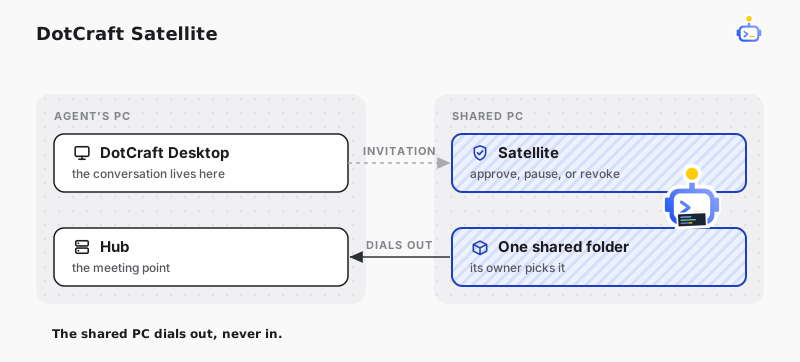
Person inviting: create an invitation
Open Settings → Connections → Satellites and choose Invite. The link is ready as soon as the dialog opens: copy it and send it to the other person.
If Windows asks whether to allow DotCraft through the firewall on your first invitation, allow it on a private network you trust. The shared PC must be able to reach the address in the invitation link.
Person sharing: install and open Satellite
Open the invitation link on the PC you want to share, check who is asking, and choose Download DotCraft Satellite. Complete the installation to open Share this PC. Satellite installs for your Windows user without requesting administrator access.
If Satellite is already installed, use the invitation page's option to open it.
Person sharing: choose an access mode
Satellite offers two access modes side by side, each stating what it allows. Full access is selected when the window opens.
Full access
Choose Allow connection. Files and commands then run with your Windows permissions without asking each time. Operating system permissions and explicit host restrictions still apply, so choose this mode only when you trust the other person to operate this PC.

Folder only
Choose Folder only and Satellite asks you to pick the folder to share. Cancel that picker to use the suggested task folder instead, which is created only when you allow the connection. The folder button on the card picks a different folder.
The agent can read and change files in that folder. Other file access and local commands need your approval, which is not a strict filesystem sandbox.

Decline leaves the PC unpaired and does not create the suggested task folder.
Person inviting: choose where to run
After the other person allows the connection, find the PC in Settings → Connections → Satellites. Open Run on below the conversation composer, select the remote PC and its workspace, and submit your task.
File, Shell, language tools, and .NET plugin tools that support remote calls run on the selected PC. A failed remote call does not automatically run on your own PC. Select This PC to switch back.
The agent can also access files on your own PC without changing this selection, and copy files or folders between the two PCs when needed. For example: “Upload my local checker CLI to the remote workspace and run it there.” Replacing existing files requires the overwrite option.
For .NET tools that support remote calls, DotCraft automatically prepares the plugin bundles, dependencies, and settings on the shared PC. Skill instructions stay on your PC, with supporting files transferred as needed. Any CLI must support the shared PC's operating system. See local access and file transfer for tool parameters.
Person inviting: watch the remote screen
While the conversation runs on the remote PC, choose Watch … screen in the conversation header to open a live view of that PC's desktop. Drag it wherever it suits you and resize it from its corner; point at it for Expand and Stop watching. The view is read-only and nothing is recorded. If the other person pauses sharing or their PC drops off, the view comes back on its own when sharing resumes.
Person sharing: see who is using your PC
As long as your PC is paired, a bar sits at the top of your screen, above your other windows. While someone is using your PC it names who is connected, and while a tool runs, the operation and the command it is running. Point at the bar to see every connected PC with its access mode, disconnect one, or open its task folder. Pause sharing below that list stops every PC at once, and Resume sharing on the bar lets them back in. Drag the bar elsewhere if it covers what you are working on; it comes back where you left it.
While the other person is watching your screen, the bar shows an eye, and Windows notifies you when watching starts and stops. Pause sharing ends it.
Person sharing: handle additional access
In Folder only mode, additional access is asked for on that same bar. Check the inviter, the operation, and the path or full command, then choose Allow once or Decline. Commands may affect files outside the task folder. You answer one request at a time, and a request nobody answers within two minutes is declined.

If you decline, the agent receives that result. The person inviting your PC cannot approve this access on your behalf.
Person sharing: review, pause, or revoke access
If Desktop is also installed on this PC, open Settings → Connections → Share this PC to see who has access, their access mode, and their task folder. Change permissions in Satellite.

Right-click the Satellite tray icon and choose a machine to open its actions: Manage access changes its access mode, Open folder opens its task folder, Disconnect ends its current session, and Revoke access removes its access. Pause sharing stops every machine at once and can be resumed later.
The person inviting can also remove the PC from Settings → Connections → Satellites. Sharing again requires a new invitation.