
Channels & Bots
Put DotCraft in the chat tools your team already uses, so a colleague can ask in the group chat instead of opening Desktop. QQ, WeCom, Feishu / Lark, Telegram, and WeChat all connect, and the resulting sessions and memory are shared with every other entry point in the workspace.

Connect a channel
- Open a workspace in DotCraft Desktop and go to Channels.
- Pick the platform you want, and fill in its credentials on the form.
- Finish the matching setup in the platform console or bot tool.
- Turn the channel on, and send the bot a test message.
Desktop hosts the channel process for you — nothing else to deploy. Which credentials each platform needs is on its setup page in the table below. Settings shared by every channel are in the Channel configuration.
Built-in channels
| Platform | Connection | Main capabilities | Setup |
|---|---|---|---|
| NapCat or OneBot v11 reverse WebSocket | Private chats, groups, approval keywords, media delivery | QQ setup | |
| WeCom | Group bot callback URL, Token, EncodingAESKey | Enterprise group chats, approvals, file and image delivery | WeCom setup |
| Feishu / Lark | Self-built app with Bot and WebSocket event subscription | Card replies, approvals, reactions, optional official CLI | Feishu setup |
| Telegram | BotFather token | Direct chats, groups, /new, /help, inline approvals | Telegram setup |
| WeChat / Weixin | Tencent iLink QR login | Weixin chats, saved login session, plain-text replies, file and image delivery | Weixin setup |
How channel conversations work
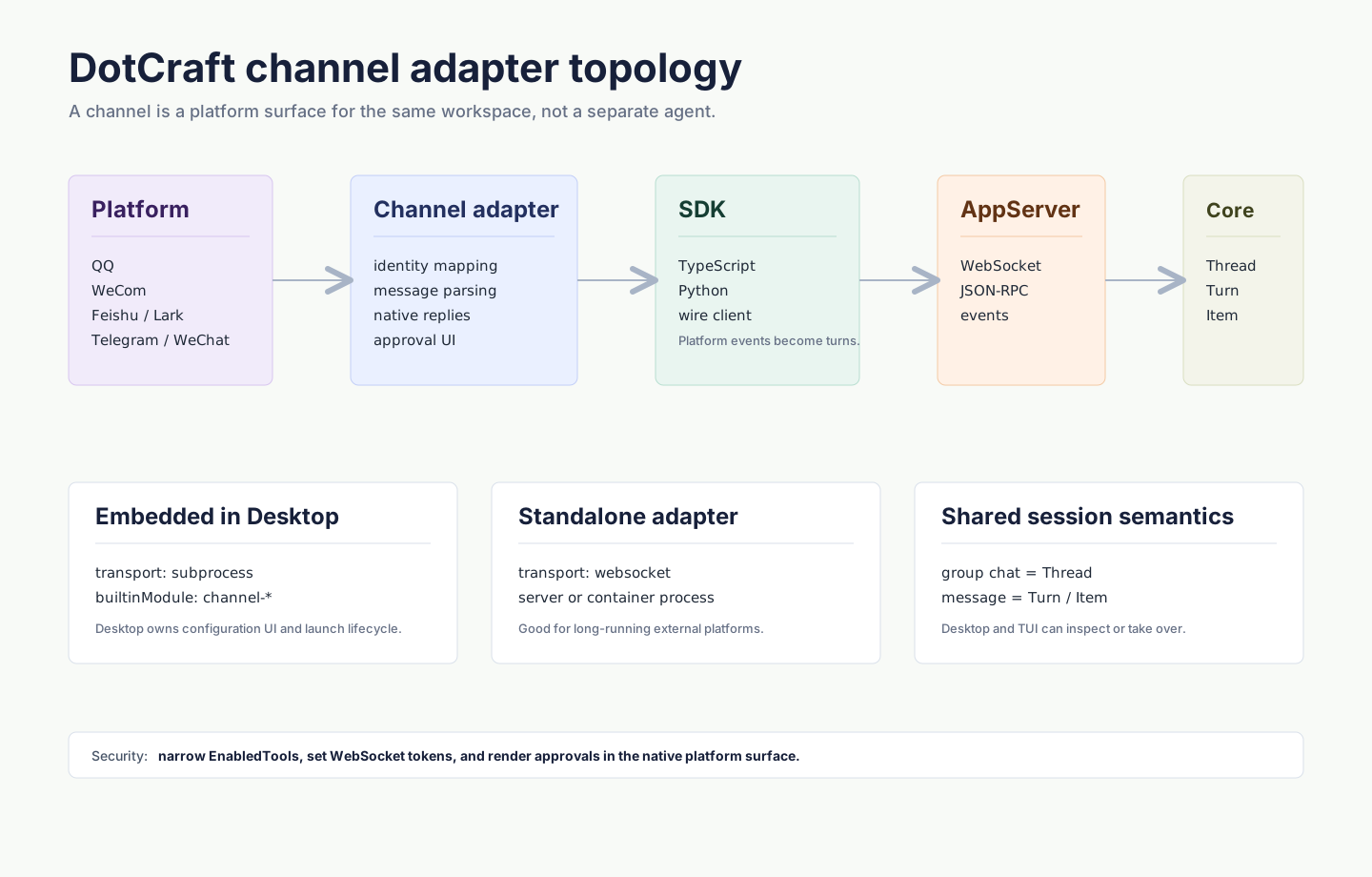
- Messages you send to the bot continue one conversation, and replies go back to the same chat.
- Approvals and follow-up questions appear in the chat where the platform supports them.
- Images DotCraft generates are sent to the chat, as a picture where the platform can show one and as a file otherwise.
/newstarts a fresh conversation in channels that support slash commands.- Open the same workspace in Desktop to read the history or keep the conversation going there.
For the model underneath, see Unified Session Core.
Continue a Desktop conversation in chat
In a Desktop conversation, type /bind and pick a connected channel. DotCraft shows a command such as /bind 482913. Send it in the chat you want within 10 minutes, and the conversation continues there.
The binding applies only to that chat; other chats keep their own conversations. To stop, choose Stop continuing in … from the conversation's ⋯ menu, or type /unbind.
Before you open a bot to a group
Before putting a bot in a group or public chat:
- Keep file and shell actions behind approval.
- Limit the channel to trusted users, groups, or chats where the platform supports it.
- Set a strong random AppServer WebSocket token when you run an adapter yourself.
- Serve production deployments over HTTPS when the platform calls back into DotCraft.
The exact field names are in the Entry points and services.
Related docs
- Security — tighten tools and approvals before a bot faces a group chat
- Server Deployment — keep channels running on a server instead of your own machine