
Security
DotCraft checks every tool call the agent makes before it runs. Each call ends one of three ways: it runs, it asks you first, or it's refused. You decide which tools exist, which paths file tools can't touch, which commands need your go-ahead, and how much the agent may do on its own.
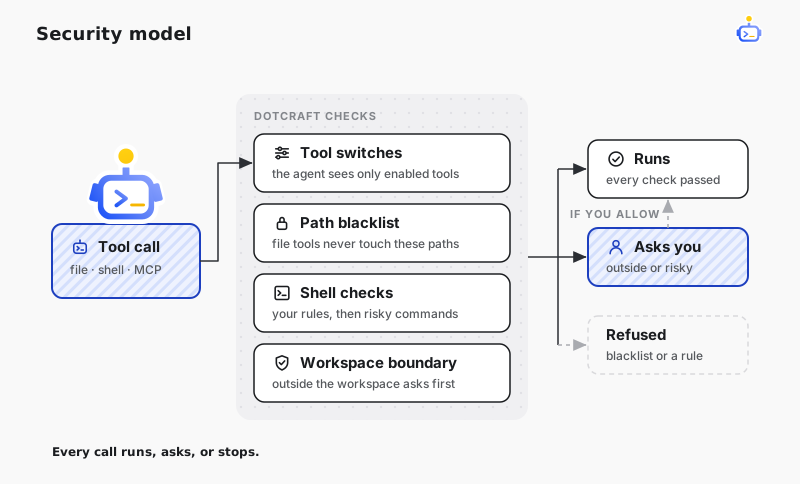
What happens by default
In a new workspace:
- File tools and shell commands run without asking inside the workspace.
- Leaving the workspace asks first. That covers file-tool access to an outside path and commands launched from an outside directory, including symbolic links that point outside.
- Commands that force-delete files or open a URL ask first.
- MCP tools ask before they run, unless their server declares that the tool neither makes destructive changes nor reaches external systems.
- The blacklist is empty and the built-in tools aren't narrowed.
Choose how much the agent does on its own
In Desktop, open Settings → General → Permissions. Default permissions sets how new conversations in this workspace handle approvals:
- Ask for approval: every action listed above asks you first.
- Full access: every action that would ask is approved automatically.
To set it for one conversation, pick an option from the composer's Approval policy.
Full access doesn't let everything through. Blacklisted paths and commands your rules forbid are still refused. Dangerous commands are refused too, unless an allow rule covers them. Use Full access only in workspaces you trust.
To refuse anything outside the workspace instead of asking, set Tools.File.RequireApprovalOutsideWorkspace to false. The field is described in Permissions.
Answer an approval
A shell approval shows the shell, the commands as DotCraft read them, and why it's asking. If the script uses syntax DotCraft can't read in advance, the approval says so and shows the script as a whole.
Each choice remembers a different amount:
- Allow once runs the command this time only.
- Allow for session skips the prompt for this exact command, in this directory, for the rest of the conversation.
- Always allow writes a rule that allows commands starting with the same words. Dangerous commands and unreadable scripts are an exception: they're remembered exactly, never as a rule.
Text the agent types into a running terminal goes through the same checks.
Blacklist secret paths
Add the directories that hold credentials and keys to Security.BlacklistedPaths, such as ~/.ssh, cloud credentials, and your password manager's folder. File-tool reads, writes, edits, and searches on those paths are refused outright, with no approval, even under Full access. Subpaths are covered too, and every entry point enforces the same blacklist.
The blacklist applies to file tools, not to shell commands. A command launched inside the workspace can still read a blacklisted path, so add rules for commands that could reach your secrets. A sample configuration is in the permissions reference.
Write command rules
Command rules live in Tools.Shell.Policy.Rules. Each rule names the leading words of a command and whether to allow it, ask, or refuse it, so git push can always ask and rm can always be refused. Rules decide a command before any other check, and when several rules match, the strictest one wins. Rules learned from Always allow are saved in the workspace and take effect immediately.
Narrow the tools
EnabledTools lists the built-in tools the agent can see. Tools left off the list don't exist for the agent. Optional tools such as LSP start off until you turn them on. To limit the tools of a subagent role, see Subagents.
Tools from plugins and MCP servers come with their own trust boundaries. Check them before you install, as described in Review trust before installing.
Add your own checks with hooks
Hooks can inspect a tool call before it runs, or refuse an approval request before it reaches you. See Lifecycle Hooks.
Harden a shared or exposed workspace
| Scenario | Recommendation |
|---|---|
| Personal local project | Keep Ask for approval, and blacklist SSH, cloud credential, and password manager directories |
| Team shared workspace | Put the blacklist and command rules in the workspace .craft/config.json so every entry point enforces them |
| Bot in a group chat | Keep Ask for approval, narrow the tools, and open the bot only to trusted users and chats. See Before you open a bot to a group |
| Automations | Nobody is there to answer approvals, so write allow rules for exactly the commands a task needs |
| Remote AppServer access | AppServer requires a WebSocket token on any non-loopback address. Use a strong random value |
| Subagents | Keep the default nesting depth unless you explicitly need more |
On a server, the Server Deployment stack listens only on the server itself, and Desktop connects through SSH tunnels.
Related docs
- Observability — review every approval and refusal in Dashboard
- Server Deployment — run DotCraft on a server without exposing ports to the internet